

Installation
Get the latest version from the download page. Then follow the steps for your system, and activate your license.
Download
Section titled “Download”Check which Mac you have first. Click in the menu bar, choose About This Mac, and read the chip. Apple M1 (or M2, M3 and so on) means the main download. Intel means the separate Intel download. See On an Intel Mac. Go by the chip: the Intel build may open on an Apple Silicon Mac, but it runs slower.
- Download the
.dmgfile. - Open it and drag Macro Studio to your Applications folder.
- Open Macro Studio from Applications. If macOS shows a Gatekeeper warning the first time, right-click the app icon and choose Open.
If antivirus software flags the download
Section titled “If antivirus software flags the download”Some antivirus products quarantine Macro Studio on macOS, with a name like MacOS:MalwareX-gen or TR/OSX.MalwareX. Norton, Avast, AVG and Avira share one set of definitions, so any of them may do this. Nothing is wrong with the file: every release is signed with an Apple Developer ID and notarized by Apple. The antivirus is reacting to how the app is packaged.
- Restore the file from the antivirus quarantine list, and allow it. Look for Restore, Allow, Add exception or Report as safe.
- If the product lets you report a false positive, please do.
- Contact support with the product name, the detection name and the version you downloaded, even if you’ve already fixed it.
To check the file yourself, upload the .dmg to VirusTotal. Its engines are cut-down versions, so a clean result there may not match your own antivirus.
Windows
Section titled “Windows”- Download the
.exeinstaller. - Run the installer.
- Open Macro Studio from the Start menu or the desktop shortcut.
Windows may show a security warning at step 1 or 2. It means the installer is new, not that anything is wrong with it. Here’s how to get past each one.
“Isn’t commonly downloaded”
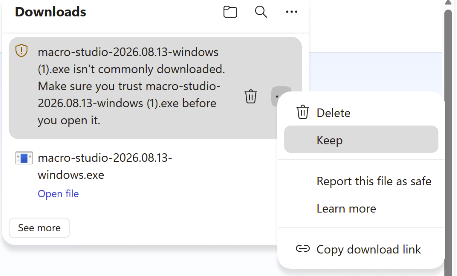
Section titled ““Isn’t commonly downloaded””Your browser may refuse to save the installer, with a message like “macro-studio-2026.08.13-windows.exe isn’t commonly downloaded. Make sure you trust macro-studio-2026.08.13-windows.exe before you open it.” This is Microsoft Defender SmartScreen. Every new release gets flagged for a while. If you didn’t see this, skip to “Windows protected your PC”.
In Microsoft Edge:
-
Open the Downloads list (
Ctrl+J). -
Hover over the blocked download. Click the three dots (…) next to the trash icon, then click Keep.
-
In the box that appears, check that the Publisher line includes Macro Studio (it reads something like US, Texas, Austin, Macro Studio, Macro Studio). If it doesn’t, don’t keep the file. Contact support instead.
-
Click the small arrow on the right end of the Delete button, then choose Keep anyway.
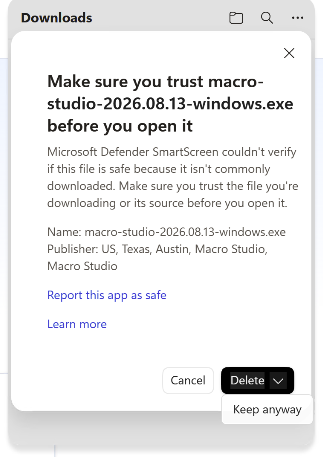
The installer is now in your Downloads folder.
“Windows protected your PC”
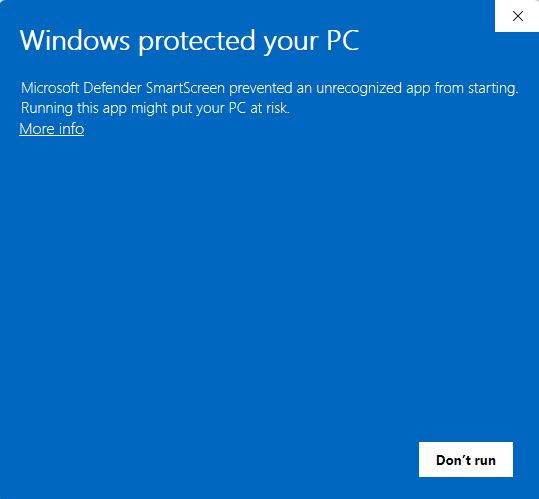
Section titled ““Windows protected your PC””When you run the installer, a blue box may say “Windows protected your PC”, with only a Don’t run button. This is SmartScreen again.
-
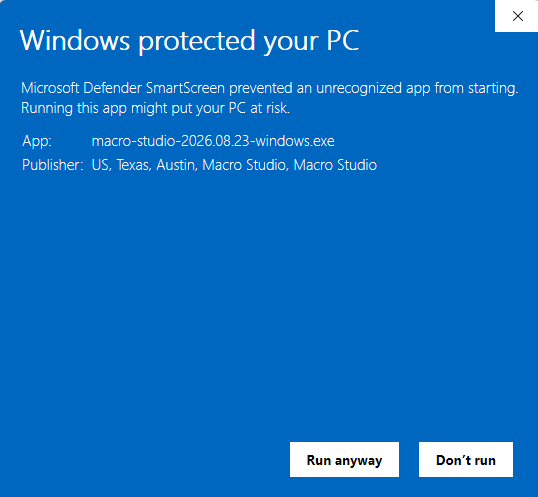
Click More info. A Publisher line and a Run anyway button appear.
-
Check that the Publisher line includes Macro Studio. If it doesn’t, don’t run the file. Contact support instead.
-
Click Run anyway.
Antivirus tools, McAfee in particular, sometimes quarantine the installer too. Choose Keep or Allow, or restore it from the quarantine list. Report a false positive if you can, and tell support the product and detection name.
If you’re stuck, contact support before you run anything, with a screenshot of what you see.
Where Macro Studio is installed
Section titled “Where Macro Studio is installed”You need this only when another app asks you to Browse for Macro Studio. DxO PhotoLab and ON1 Photo RAW do this the first time you send them a bracket.
By default Macro Studio installs just for you, so installing and updating never need an administrator password. The file is:
C:\Users\<your name>\AppData\Local\Programs\Macro Studio\MacroStudio.exeFile Explorer hides AppData. In the Browse window, paste this into the address bar, press Enter, and pick MacroStudio.exe:
%LOCALAPPDATA%\Programs\Macro StudioIf you chose Install for all users, it’s in C:\Program Files\Macro Studio\MacroStudio.exe.
The installer only asks this the first time. To switch, uninstall from Settings → Apps (your license, preferences and watermarks are kept), then install again. If you move it, point DxO or ON1 at the new location.
Macro Studio for Linux is an unsigned AppImage: a single file that runs without an installer. It needs glibc 2.35 or newer. It’s tested on Ubuntu 22.04+, Fedora 36+, Arch and Debian 12+.
- Download the
.AppImagefile. - Move it somewhere permanent, such as
~/Applications/. - Make it executable: right-click → Properties → Permissions → tick Allow executing file as program. Or run
chmod +x macro-studio-*.AppImage. - Double-click it.
Troubleshooting
Section titled “Troubleshooting”“AppImages require FUSE to run” or a libfuse.so.2 error: Ubuntu 24.04+ and Debian 13 don’t include libfuse2. Install it:
- Ubuntu / Debian:
sudo apt install libfuse2 - Fedora:
sudo dnf install fuse-libs - Arch:
sudo pacman -S fuse2
Nothing happens on double-click: the file isn’t executable yet. See step 3.
Ubuntu 24.04+ AppArmor: AppArmor can block the AppImage in some setups. Run it this way instead:
./macro-studio-*.AppImage --appimage-extract-and-runActivating your license
Section titled “Activating your license”The first time you open Macro Studio after buying, the activation dialog appears.
- Enter the email address you used at checkout. It must match.
- Paste the license key from the email sent by [email protected]. Check your junk folder. Paddle’s payment receipt does not contain the key.
- Click Activate.
You won’t see this dialog again on this computer unless you sign out or move the license.
Each license works on up to 3 computers. A 4th is refused. To move a license to a new computer, contact support.
If activation fails
Section titled “If activation fails”- It can’t find your license: wait a few minutes and click Activate again. A new purchase can take a little while to register.
- It couldn’t reach the licensing server: this is a network or server problem, not your key.
- The key is registered to a different email: check the address shown on the page after checkout. Two common reasons:
- If you started a free trial, your key is registered to the address you signed up with. Use that one. See Free Trial.
- If the address has a typo, email [email protected] to fix it. You don’t need a new key.
- The message mentions a firewall: check you’re online, and accept any Wi-Fi sign-in page (in hotels, cafes and airports). If it still fails, the network is probably blocking the check. Office, school and guest Wi-Fi often do, and so do home routers with filtering or “safe browsing” on. Activate on another network, such as your phone’s hotspot for a minute. Macro Studio re-checks the license now and then. So if the block is permanent, ask the network’s owner to allow macrostudio.pro and macrostudio.pages.dev. These are the two addresses the license check uses.
Updating
Section titled “Updating”Macro Studio checks for updates once a day when it opens, and tells you when one is ready. To check by hand, choose File → Check for Updates…. You can turn off the daily check in Preferences.
The update check sends nothing about you or your work. It only asks for the latest version details, with no usage data attached. (Macro Studio can separately share anonymous performance statistics about stacking. That’s off by default. See Support.)
Windows
Section titled “Windows”Macro Studio downloads the signed installer, checks it, and runs it for you. If the download is incomplete, you’re asked to try again.
Both Mac builds update themselves in place, then relaunch. An Intel Mac is only offered Intel builds, and skips a release that has none.
Two cases get a Download button instead: an older Intel build with no updater, and the Intel build on an Apple Silicon Mac. It opens the right .dmg in your browser. Install it as before: open it and drag Macro Studio to Applications, over the old copy. An older Intel build updates itself after that.
If an update fails right after “Extracting update”, restart your Mac and try again. This is a macOS 26.3 bug. You can also install by hand from the download page.
The AppImage updates itself in place. When it’s done, click Restart Macro Studio, or close the prompt to get the new version next time. If the update fails, the dialog says why and offers the download page.
Next steps
Section titled “Next steps”Ready to stack your first image? Follow the Quick Start guide.